Important Notes for the “America 250 Special Edition” Streaming-Book Demo Version for Flag-Partners
PLEASE READ PRIOR TO READING THE BOOK FOR THE FIRST TIME!
DEMO BOOK CONTENT NOTES:
- The “Your Flag Store” branding is a generic stand-in for our Retail Flag-Partner’s name and logo.
- The book is a “Work-in-Progress” (see the Author’s Manuscript Notes that follow for more information)
- The Demo version may contain Content (Text, Images, Multimedia, etc.) from the full manuscript that may not be included in the final release version of the “America 250 Special Edition”)
BOOK-NAVIGATION QUICK-START:
- Screen Navigation Instructions:
See the separate “Streaming-Books Navigation Guide” PDF document with images following these notes. Currently, the icon color (white) cannot be changed, so they are sometimes difficult to see over the “3-Flags of Freedom” custom illustration used for the background. This will likely change in the release version.
- Buttons / Icons Navigation Functions:
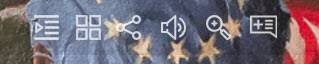
You will find the following functions at the top-center of the screen. The buttons are from left to right:
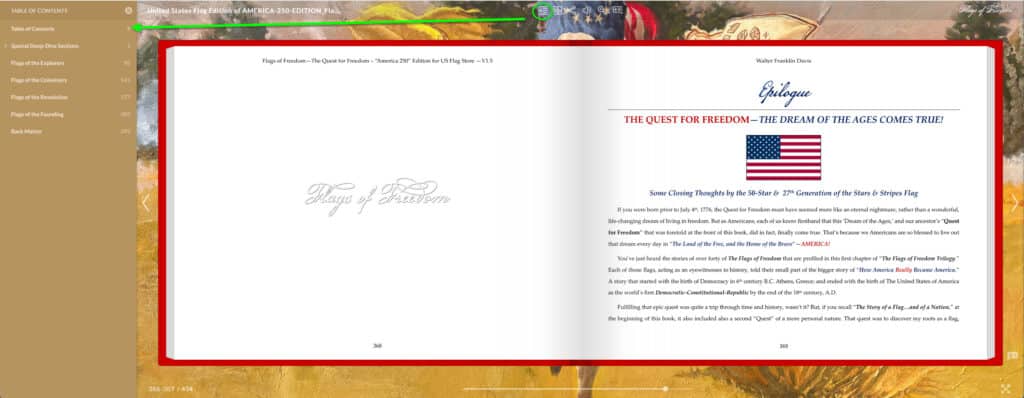
- Streaming-Book Table of Contents: (not to be confused with the manuscript’s TOC within the book.)
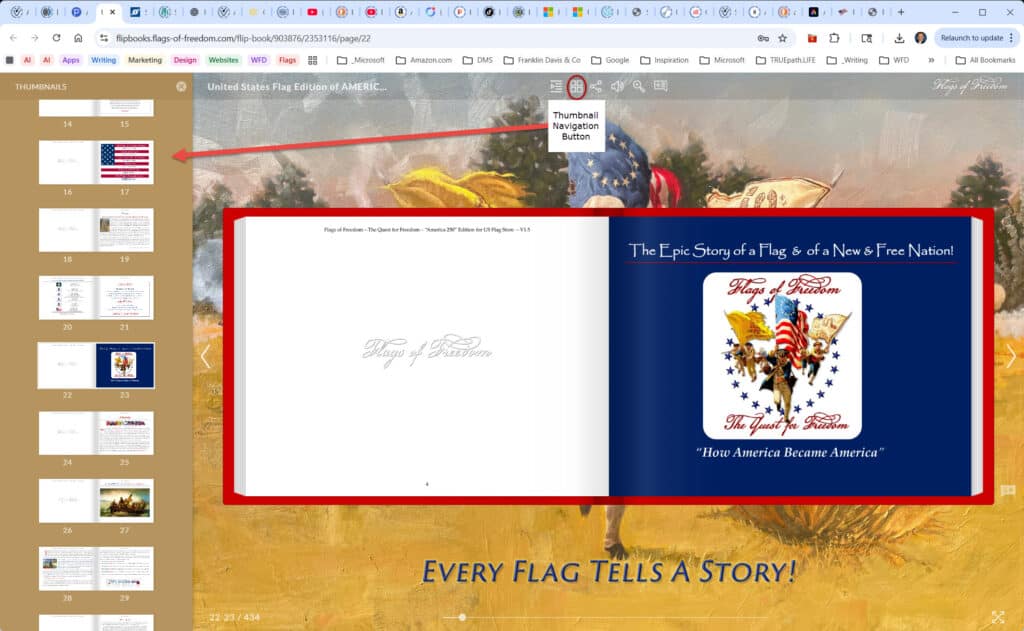
- Visual Page Navigator opens left-panel w/thumbnails of pages to help you quickly find Content.
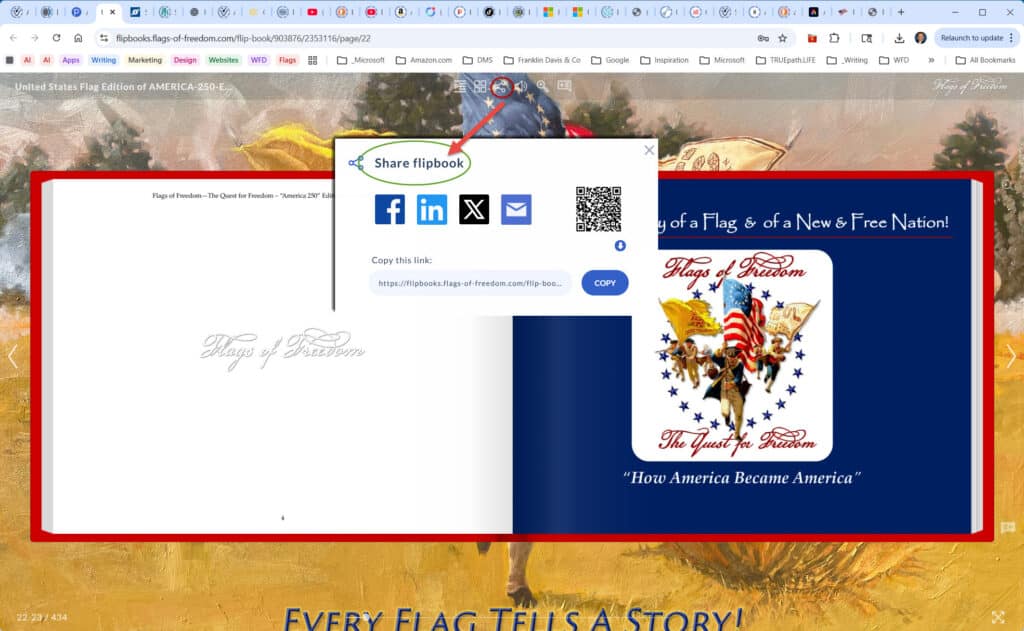
- Sharing via Email, X, Facebook, Instagram, etc.
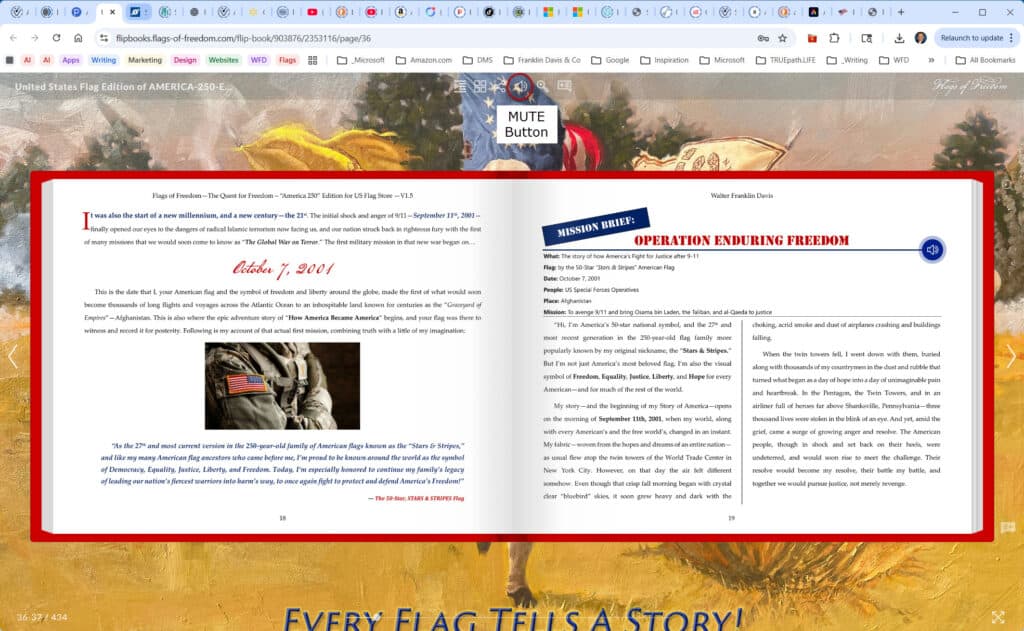
- Audio (mute)
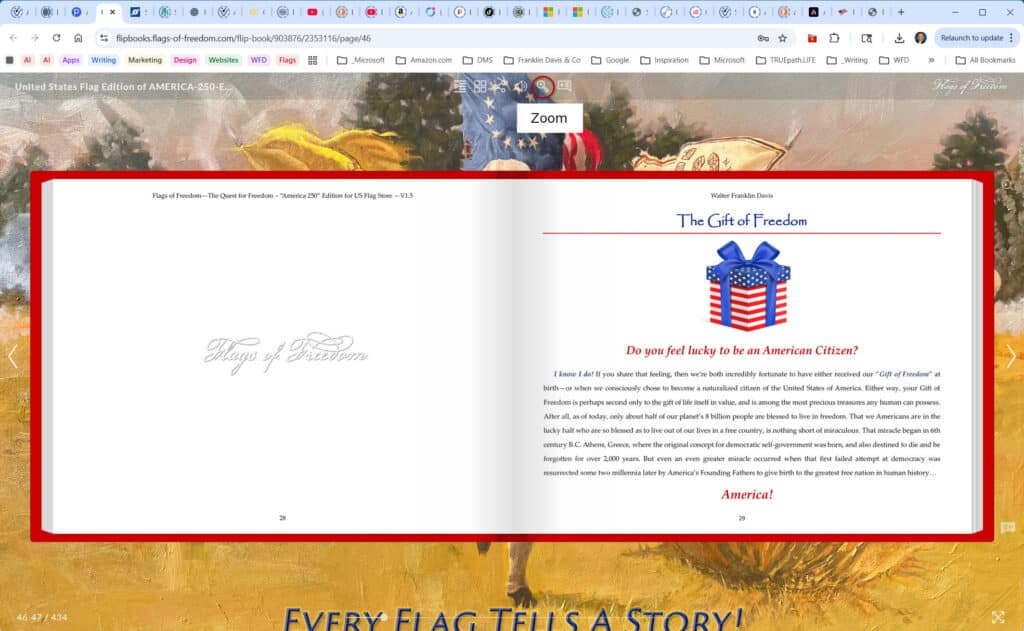
- Zoom In/Out
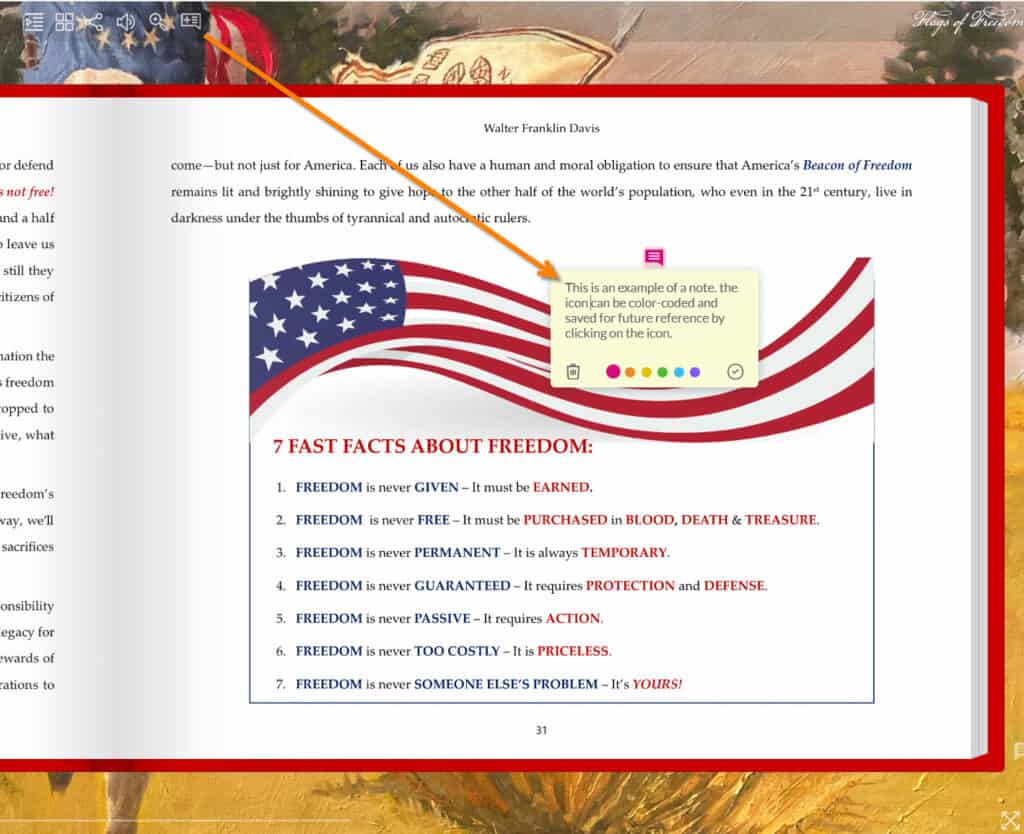
- Personal Notes that will remain on the page until you delete them.
The following functions are on the left and right of the pages, and under the book:
- Left / Right Arrows (you can click almost anywhere to the left or right to move to another page)
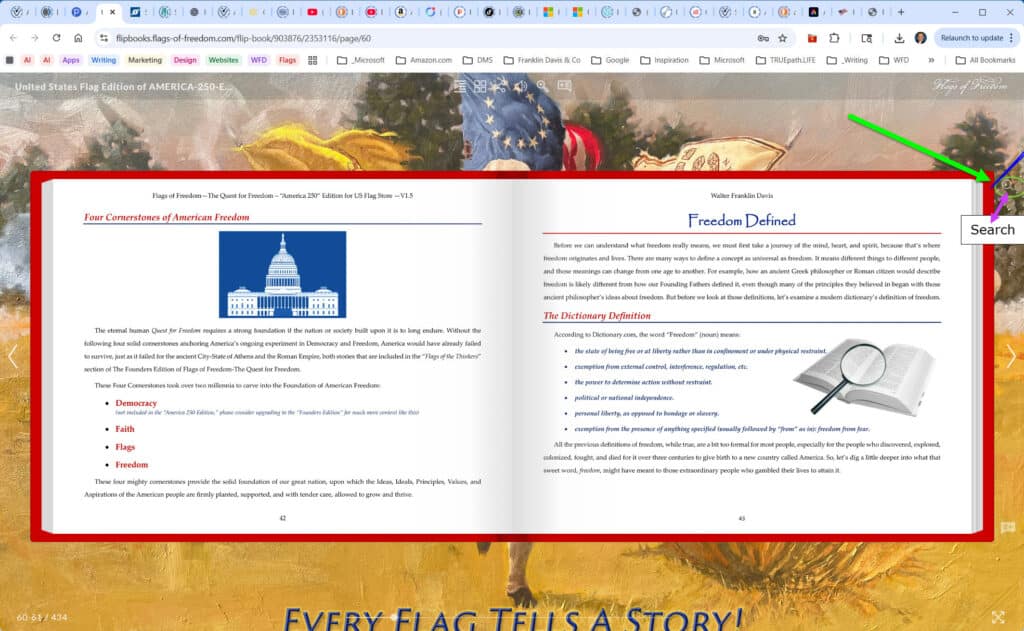
- Search (located to side of top-right corner of book page)
You will find the following functions at the bottom-right of the screen:
- Full Screen (expand book to full screen – helpful to read on smaller screens)
You will find the following functions at the bottom of the screen below the book:
- Book Page Numbers / Manuscript Numbers (lower-left corner)
- Page Slider: (click on the Page slider under the book, and drag to the right or left to go to a page)
In-Active Buttons: (These functions will not be included in Paid editions of the book-only in the Demo)
- Print:
- Save as PDF
AUTHOR NOTES ON MANUSCRIPT:
- The DEMO version of this book is a ‘Work-in-Progress’:
Please note that the manuscript used to create this Streaming-Book format still remains —even after four years of writing, editing, and rewriting—a work in progress, and the content is subject to frequent additions, deletions, changes, and enhancements. So don’t be surprised if you see something new or different each time you open a new reading session or refresh your browser.
- Dynamic-Streaming-Book Updates: Changes and updates are a “feature” and not a “fix,” as streaming-books, unlike static print and old-fashioned eBooks, are designed to be dynamic and regularly updated like software apps, so they are kept more interesting, educational, error-free, and are always up to date!
- Change & Versioning System: Please note the version number of the current version of the Streaming-Book, notated in the page header and on the Title Page shown as: “Vx.x.x” or “V1.72” as an example. Each time the book is changed significantly, a new incremental version number is assigned. So, if you see content added or removed, page numbers that have changed, or anything else that different from the last time you opened the book or refreshed your browser, remember to notice the version number.
- Submitting Errors, Suggestions, Changes, Duplications, Deletions, etc.: If you find misspellings, inaccuracies, or other problems with the book, please let the author know through the following email address: Feedback@Flags-of-Freedom.com
America 250 Special Edition Notes:
- This Special Edition is a sub-set of the full Founders Edition manuscript, so it may not contain all of the pages, text, flags, stories, special sections, images, and extra content found in the standard “Founders Edition” of the book. Readers can upgrade from the “America 250 Special Edition” to the Founders Edition for only $9.95 on the Flags-of-Freedom.com website.
- Current Manuscript Statistics: (does not necessarily reflect final published counts)
- Page Count: 436
- Word Count: 109,766
- Flag Profiles: 37+
- Other Flags: 20+
- Other Book Editions & Formats: (see the “Flags of Freedom Editions Comparison Table”)
MULTIMEDIA CONTENT NOTES:
- Video: (The videos in this Demo version are for examples only. They will be replaced with better quality versions and more videos will be added over time)
- Founders Videos: (There are a dozen or so AI-enabled “Founders Speak!” videos planned)
- Animated Flags: (There are only a handful of animated flags in the Demo at the moment. All flags profiled will have their own animated flag shortly)
- Audio Flag Story Narrations: (same as above)
- Static Images: (Most existing images are complete although not final. New images are added frequently)
- Sound Effects: (Additional sound effects are on the way!)
- Music: (More music or better renditions of existing music are planned.)
Flags of Freedom Streaming-Book Navigation Guide
Following are some screenshots to help you understand how to navigate the content in the flipbook, and the features available to readers.
There is a Navigation Panel at the top center of the flipbook, just under the Title Bar. When the “3-Flags of Freedom,” custom painting that I commissioned for the cover is used as the background, these nav buttons and others around the screen are often difficult to see the first time you open the book. Following are screenshots showing each of the Nav Elements and their purpose. Here is a closeup of the Navigation Panel with icons.
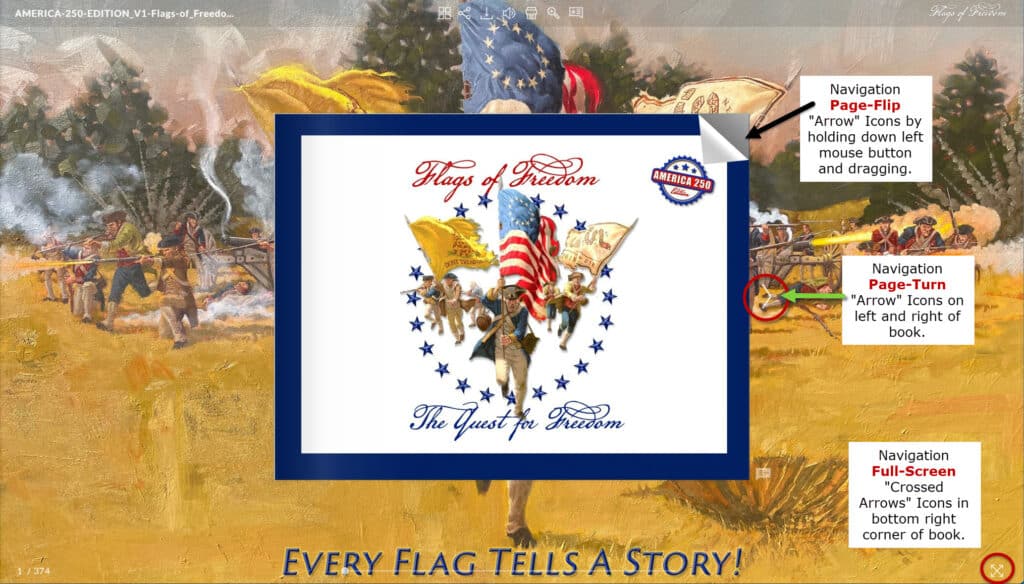
- “PAGE FLIP,” “PAGE-TURN” and “Expand Full-SCREEN” Icons.
You can “Flip” each page using three methods: (1) either click the white “arrow” icons on either side of the book, or click anywhere on the left or right of the book, or (2) grab a corner of a page and drag it with your left mouse button held down to “flip” the page, just like a paper book page! (3) Click the screen anywhere to the left or right of the arrow icons to turn the page.
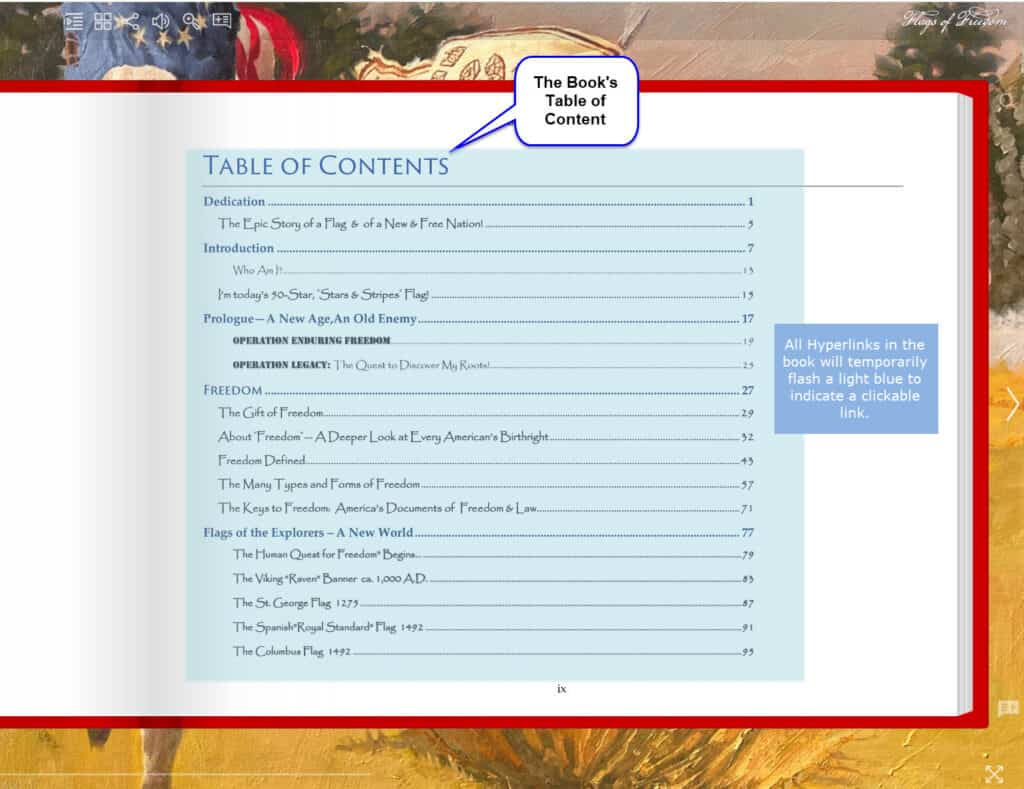
- “TABLES OF CONTENTS,” There are two Tables of Contents. (A) The first shown is the “Manuscript’s” TOC, which is are very high-level links to major sections in the book.
A: The Manuscript’s TOC.
B: The second is the “Flip-Book’s“ TOC.
- The “THUMBNAIL” Navigation Icon opens a callout on the left side of the screen. This makes finding pages and opening pages simple by scrolling with your mouse-wheel/pointer up and down.
- The “SHARE” Icon circled in red at the top, brings up a dialog (red arrow) offers readers the opportunity to send a link to the book to friends by email or any of the major social media channels.
- The “MUTE” Icon turns the sound off in the book.
- The “SEARCH” Icon brings up a Search dialog to “Find” any text or search term you enter in it.
- The “ZOOM” Icon allows readers to zoom in to the page for a closer look.
- The “NOTES” Icon lets you create personal notes next to any content that you want to bring up later.